Search & file paths
Find output across sessions or insert a file path without leaving the terminal.
On this page
Choose the right search
| You need to… | Use |
|---|---|
| Search the current pane, including regular expressions | Find (⌘F) |
| Search retained output across open sessions | Session → Search All Sessions… |
| Insert one or more file or folder paths | Insert Path (⌥⌘I) |
| Change directory or open a directory in a new tab | Go to Directory (⌥⌘G) |
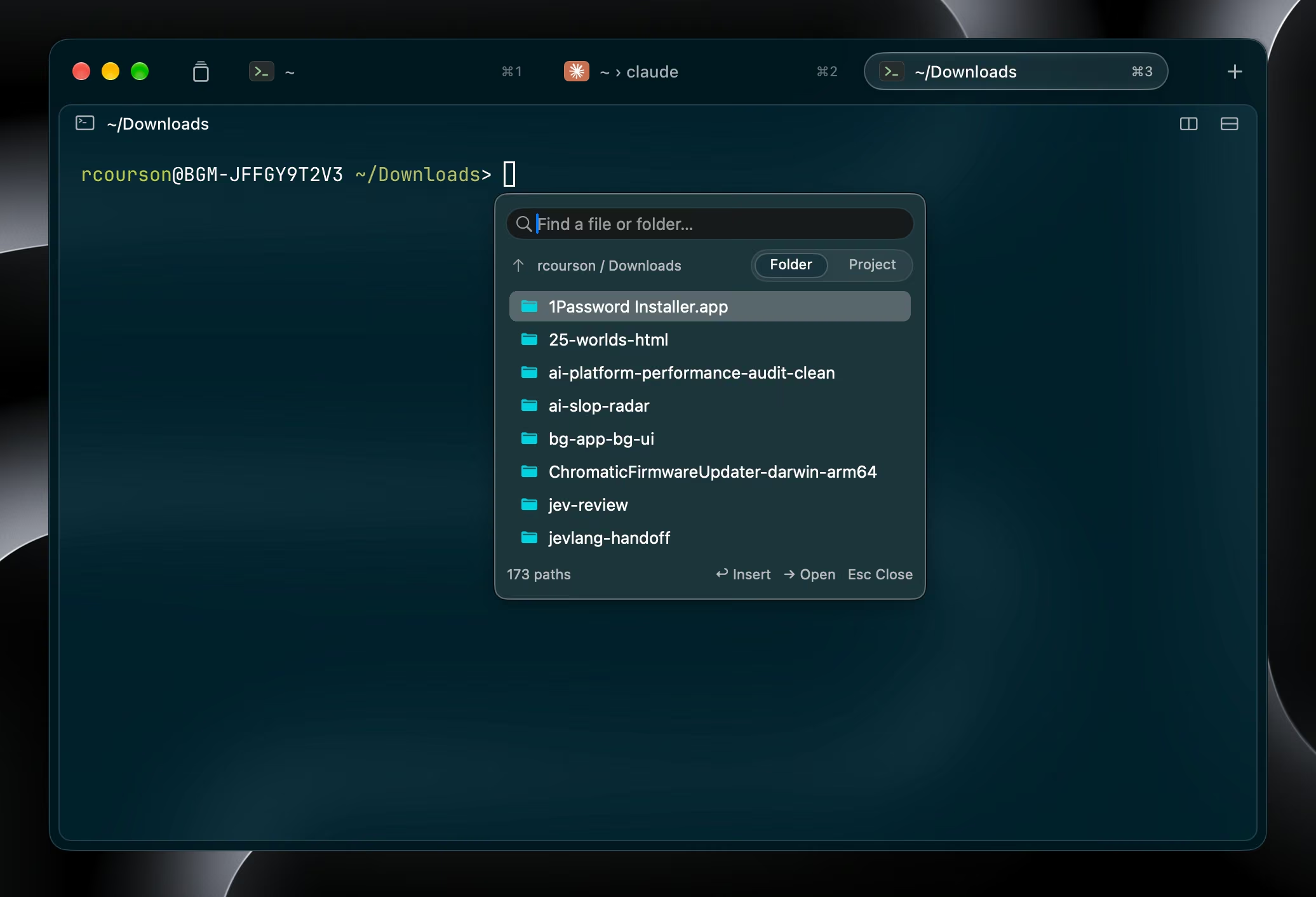
Insert Path is the cursor-anchored popup shown here. It stays attached to the pane and host that opened it, even if focus changes elsewhere.
Search All Sessions
Choose Session → Search All Sessions… and enter a literal query. Search every attached host, or narrow the scope to a host or source session. Turn on case sensitivity when needed. Results show their host, session, and source pane.
Results are paged in batches of 100 per host. A failed host is reported without hiding successful results from other hosts. This searches retained output in open sessions, not an archive of closed output.
Insert a path without executing it
- Open Insert Path with ⌥⌘I, the View menu, or the command palette.
- Choose Folder for the current directory or Project for Git-aware search. Type to fuzzy-match names.
- Select the path or multiple paths, then press Return to insert them into the originating pane.
| Key | Action |
|---|---|
| Return | Insert the selection, shell-quoted. No Return is sent to the shell. |
| Right arrow or Tab | Open a selected folder. |
| Left arrow | Go to the parent directory. |
| Escape | Dismiss and return focus to the source pane. |
Project search includes tracked files and untracked, non-ignored files. Paths preserve surrounding filename spaces; names with control characters are rejected. Inserting paths does not run a command.
Go to a directory explicitly
Open Go to Directory with ⌥⌘G. Return sends cd to the selected directory; Command-Return opens a new tab in the source context; Option-Return inserts the path. Right arrow opens a folder and Left arrow goes up.
Search boundaries and remote behavior
The picker runs on the daemon that owns the source pane. Outside Git, Project search uses a bounded traversal, skipping hidden folders, packages, symlinks, node_modules, vendor, and build directories. It does not recursively search a home directory or filesystem root.
It displays at most 200 matches. Subprocess collection is bounded to 4 MiB and 20,000 files plus parent directories. These limits keep large repositories from turning a picker into an unbounded scan.
Search from your tooling
harness-cli api call output.search --args '{"query":"error","case_sensitive":false}'
harness-cli api call pane.search_paths --args '{"query":"readme","project":true}'
Run these inside a Harness pane to use its context, or inspect the method schema for explicit targets. New workspace methods require a compatible daemon on the target host.
Source references Harness 2.0.1
Checked against the immutable shipping commit for Harness 2.0.1. For other versions, consult the installed CLI’s help and schemas.